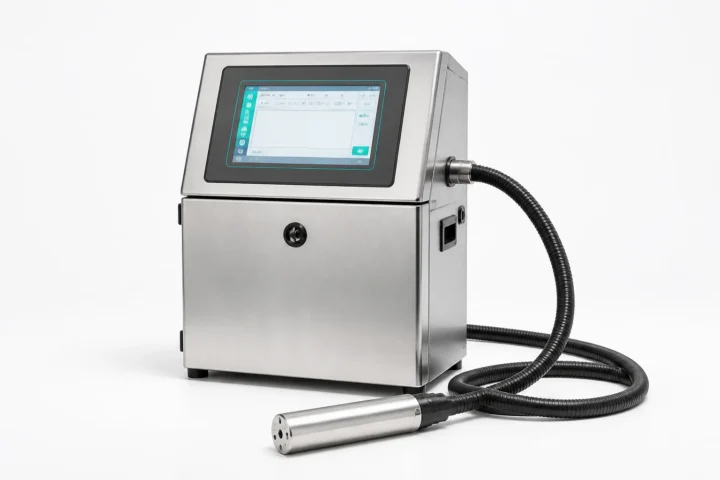

Quick answer: The most common thermal transfer printer problems are faded or blank printing, vertical white lines, label jams, skipped labels and ribbon wrinkles. Most faults can be traced to a dirty printhead or platen roller, incorrect media and ribbon loading, unsuitable darkness or speed settings, sensor calibration, or uneven ribbon tension. Start with cleaning and correct loading before changing mechanical settings.
Thermal transfer label printers are reliable, but print quality can deteriorate when labels, ribbons, sensors and printer settings are not matched correctly. This troubleshooting guide explains the likely causes, safe first checks and situations where a technician or replacement part is required.
Before troubleshooting: pause the print job, switch off and unplug the printer, and allow the printhead to cool. Follow the cleaning and adjustment instructions for your exact printer model. Never use a sharp tool on the printhead or platen roller.
Common thermal transfer printer problems at a glance
| Problem | Most likely causes | First action |
|---|---|---|
| Faded, light or blank print | Dirty printhead, low darkness, excessive speed, incorrect ribbon or loading | Clean, verify supplies and print mode, then test settings |
| Vertical white line | Debris or damaged printhead elements | Clean the printhead and print a test label |
| Label jam or poor feeding | Incorrect loading, adhesive residue, tight guides or unsuitable media | Clear the path and reload the media |
| Skipped or misaligned labels | Wrong sensor selection, dirty sensor or lost calibration | Check the sensor and calibrate the media |
| Ribbon wrinkles | Ribbon misalignment, slack, incompatible core or uneven pressure | Reload and align the ribbon before adjusting hardware |
1. Faded, light or completely blank prints
What the fault looks like
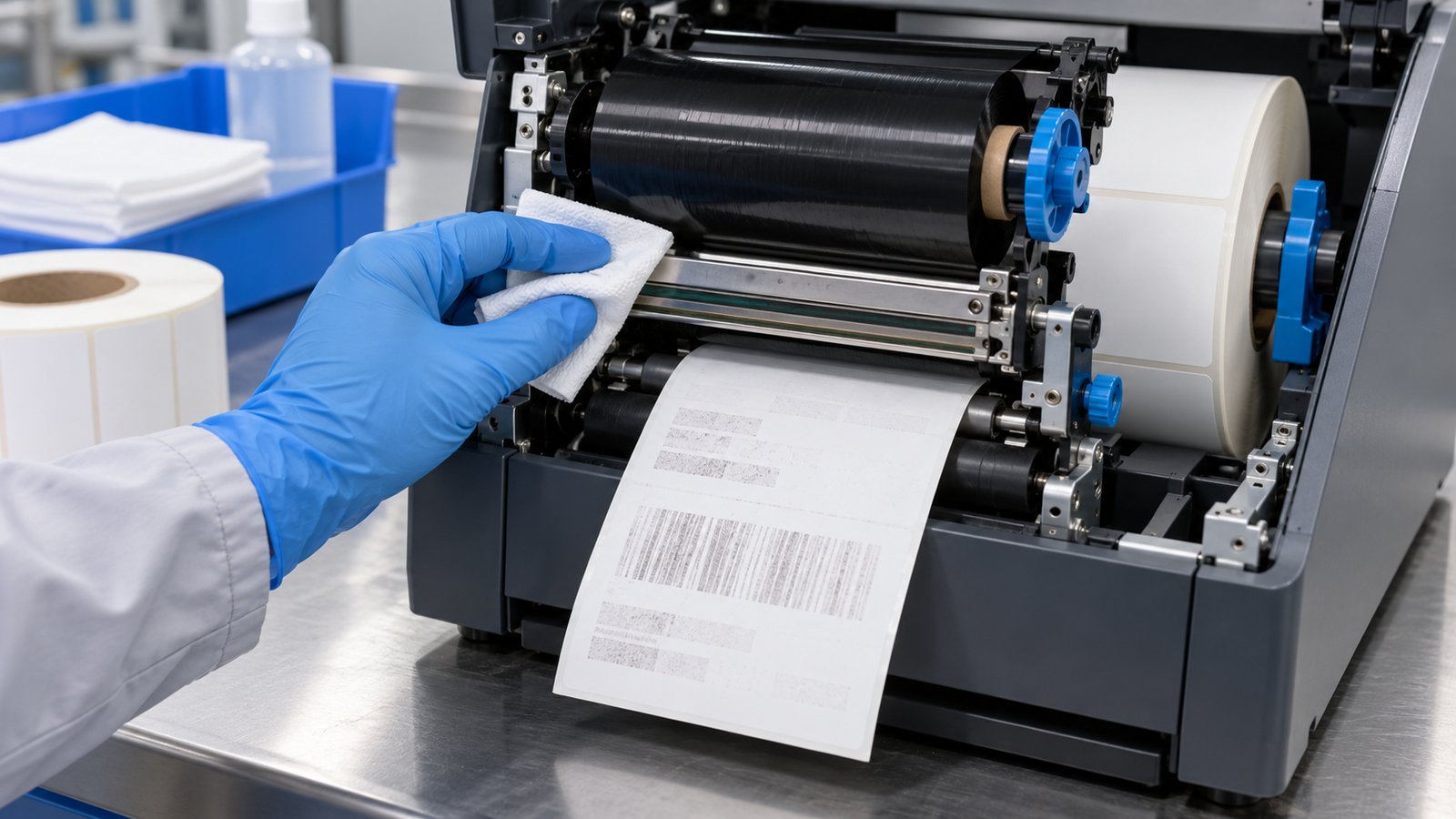
Text and barcodes appear pale, patchy or incomplete across the whole label. In a blank-print condition, the label advances but no image is transferred.
Likely causes
- Dust, adhesive or ribbon residue on the printhead.
- Print darkness or heat set too low.
- Print speed set too high for the label-and-ribbon combination.
- Wax, wax-resin or resin ribbon does not match the label material.
- Ribbon is loaded with its coated side facing away from the label.
- The printer is configured for direct thermal instead of thermal transfer, or vice versa.
- Printhead pressure is too low or uneven.
How to fix it
- Switch off the printer and allow the printhead to cool.
- Clean the printhead with a lint-free swab or cloth and the manufacturer-recommended cleaner—commonly high-purity isopropyl alcohol.
- Confirm that thermal-transfer mode is selected and that the ribbon’s ink-coated side faces the label.
- Check that the thermal transfer ribbon matches the label material.
- Increase darkness in small steps or reduce print speed, then print a test label after each change.
- If one side remains lighter, check the model-specific printhead pressure setting or request technical support.
Important: Excessive darkness can overheat the printhead, wrinkle the ribbon, spread barcode bars and shorten printhead life. Use only the minimum energy needed for a clear, scannable code.
2. Vertical white lines or missing print elements
What the fault looks like
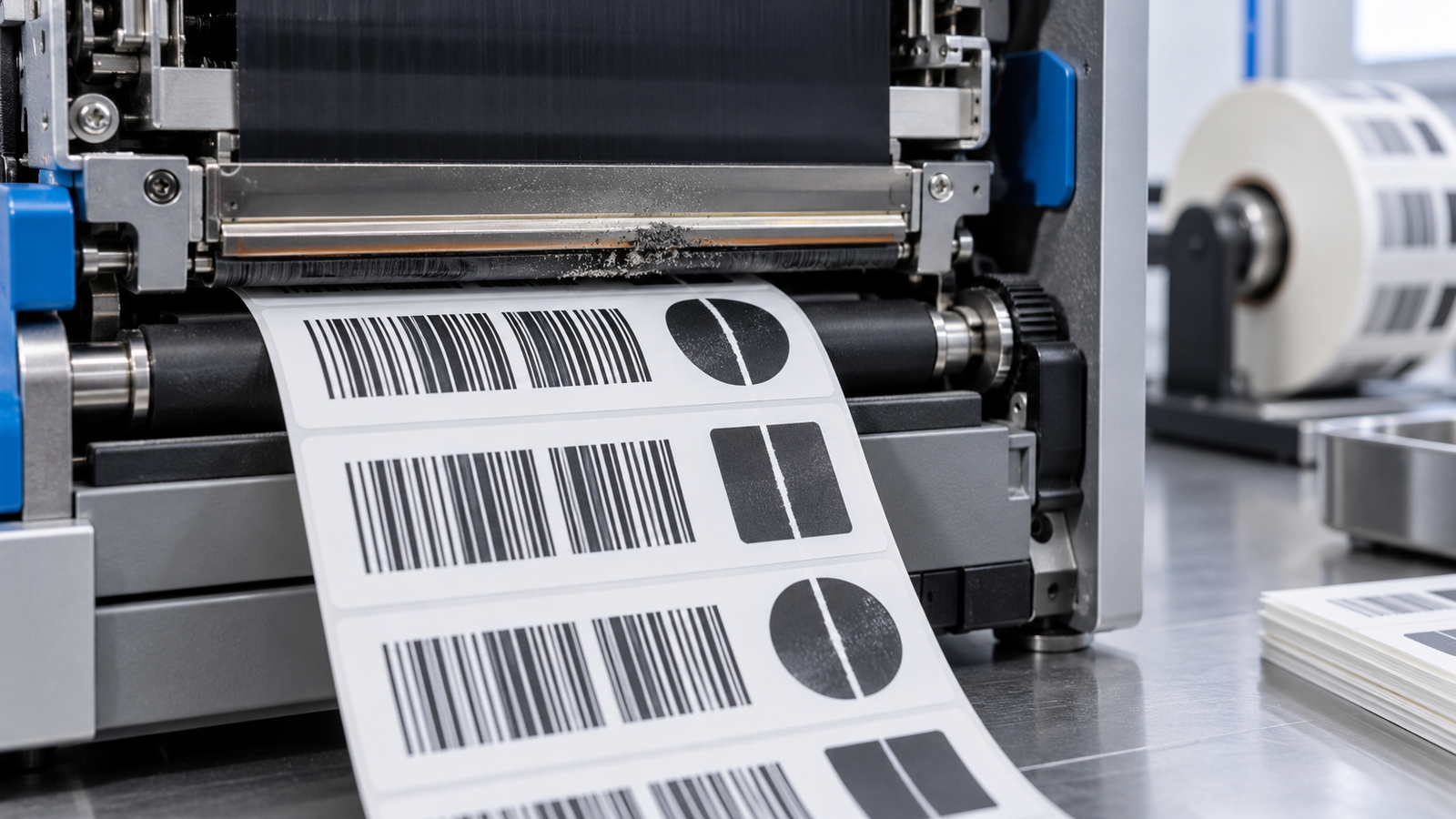
A narrow white line runs in the media-feed direction through text, graphics or barcodes. The line usually appears in the same position on every label.
Likely causes
- Dust, adhesive or ribbon deposit blocking part of the printhead.
- A scratched printhead surface.
- One or more printhead heating elements have failed.
How to fix it
- Power off the printer and clean the full print line carefully.
- Inspect the platen roller for adhesive or a groove at the same horizontal position.
- Print a configuration or test label.
- If the solid white line remains in exactly the same position, the thermal printhead may be damaged and should be inspected or replaced.
Do not scrape the printhead with a blade or abrasive material. A small scratch can permanently damage the heating elements.
3. Label jams and feeding problems
What the fault looks like
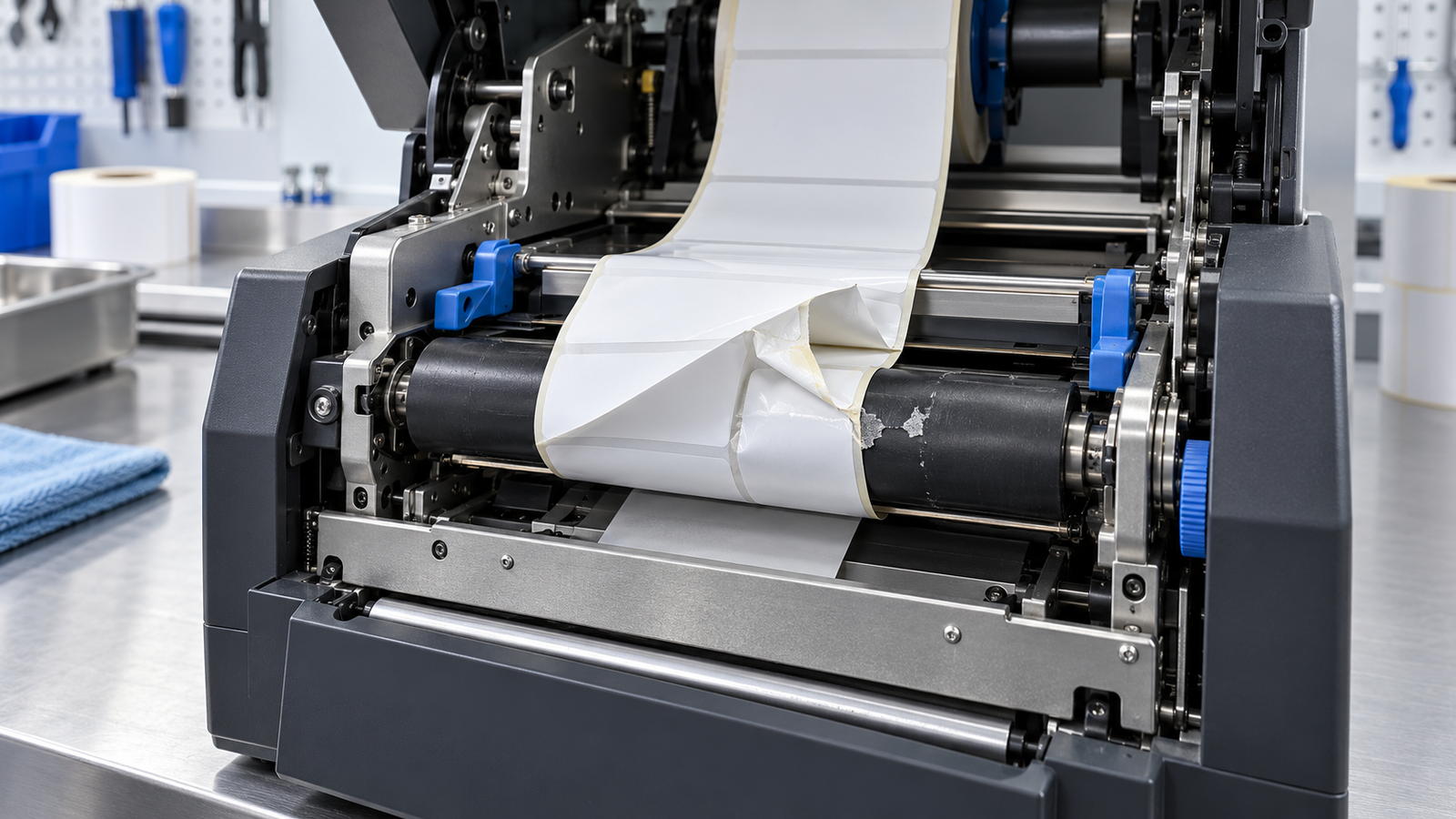
Labels stop moving, skew sideways, peel from the liner inside the printer, or wrap around the platen roller. The printer may report a media-out or paper-jam condition.
Likely causes
- The label roll is not centred or is threaded through the wrong path.
- Media guides are too loose, too tight or not touching the label edges evenly.
- Adhesive residue or label fragments are stuck to the platen roller.
- The roll, liner thickness or core size is outside the printer specification.
- Damaged or tightly wound media is resisting movement.
How to fix it
- Switch off and unplug the printer before removing jammed labels.
- Remove loose labels and adhesive without using sharp tools.
- Clean the platen roller using the method approved for the roller material.
- Reload the media according to the printer’s path diagram.
- Set the guides so they support the roll without squeezing it.
- Rotate the roll manually to confirm that it turns freely, then close the printhead and run a feed test.
If labels repeatedly wrap around a damaged, shiny or deeply scored platen roller, the roller may require replacement.
4. Skipped labels or print-position misalignment
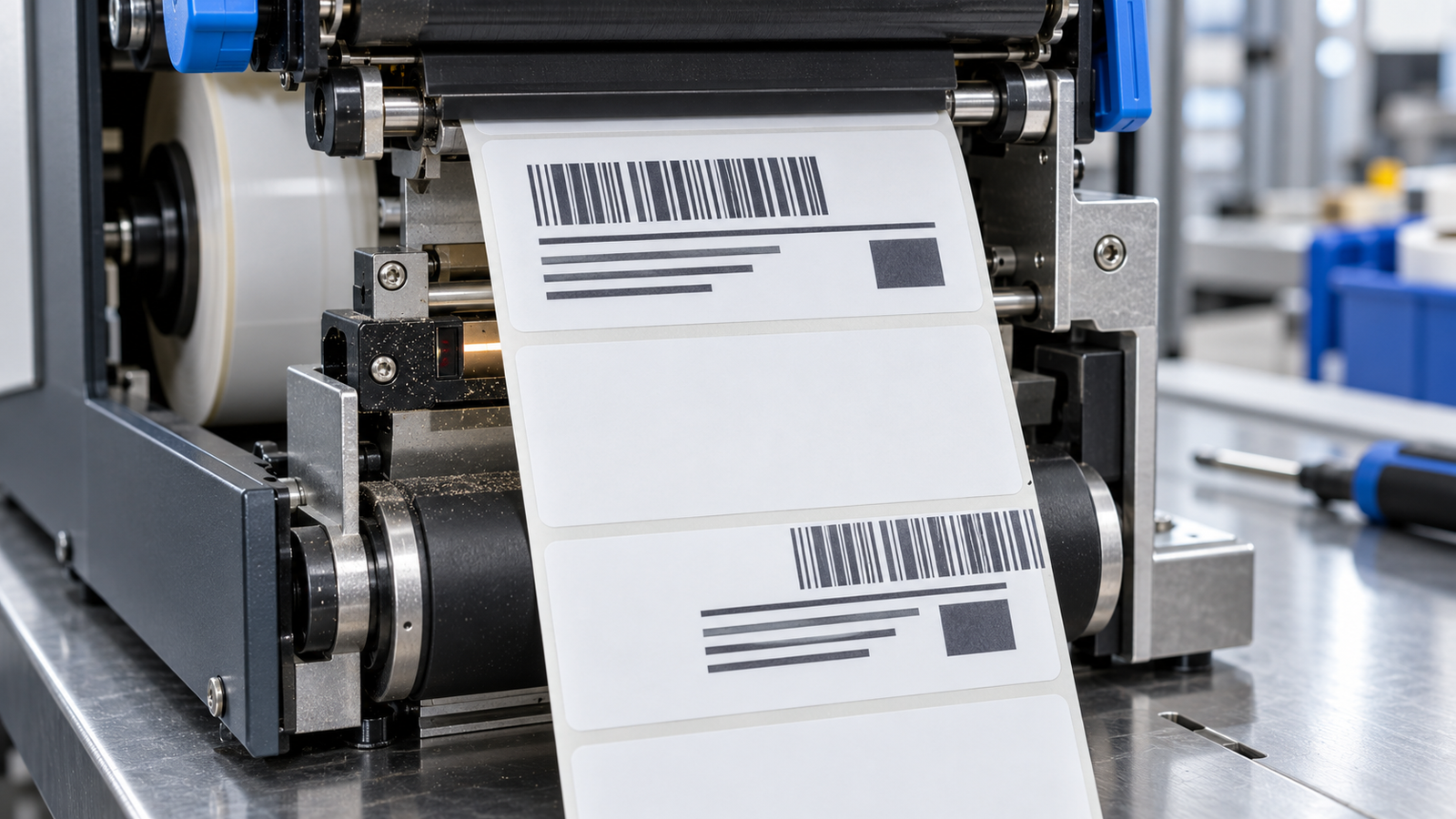
What the fault looks like
The printer feeds one or more blank labels, stops between labels, or moves the image progressively up, down or sideways. It may treat die-cut labels as continuous media.
Likely causes
- The gap, notch or black-mark sensor is incorrectly positioned.
- Dust or adhesive is blocking the optical sensor.
- The printer is configured for the wrong media-sensing method.
- A new label size or material was installed without calibration.
- The label length, top position or page size in the driver does not match the physical label.
How to fix it
- Confirm whether the media uses a gap, notch, black mark or continuous format.
- Position the movable sensor under the gap or black mark as specified by the manufacturer.
- Remove dust using an approved blower or cleaning method.
- Run the printer’s media-and-ribbon calibration procedure.
- Confirm that the label dimensions in the driver, software and printer match.
- Feed two or three labels and print a test label to verify the top-of-form position.
Calibration sequences differ between Zebra, SATO, TSC and other printer families. Use the correct procedure for the exact model rather than guessing a button combination.
5. Wrinkled thermal-transfer ribbon

What the fault looks like
The ribbon develops folds or diagonal creases. Printed labels may show diagonal missing areas, grey lines, smudging or inconsistent transfer across the width.
Likely causes
- The ribbon is not centred on the supply and take-up spindles.
- Slack was left in the ribbon during loading.
- The take-up core has the wrong inner diameter or damaged engagement notches.
- The ribbon is narrower than the media.
- Printhead pressure is uneven or excessive.
- Ribbon tension, darkness or speed is unsuitable for the application.
How to fix it
- Open the printer and reload the ribbon so it follows the specified path.
- Align the ribbon squarely on both spindles and rotate the take-up hub to remove slack.
- Use the correct core and a ribbon at least as wide as the label media.
- Feed several labels to allow the ribbon to align.
- If wrinkles continue, check the manufacturer’s model-specific ribbon tension and printhead pressure procedure.
- Change one adjustment at a time and print a test label after every change.
Printhead pressure and ribbon-tension adjustments affect mechanical alignment. If the printer manual does not provide a user adjustment, arrange a service visit instead of forcing the mechanism.
A preventive maintenance routine that reduces repeat faults
- Clean the printhead whenever a ribbon roll is changed or at the manufacturer’s recommended interval.
- Remove adhesive and label fragments before they build up around the platen and sensors.
- Use compatible labels and ribbons from controlled storage.
- Keep darkness and speed settings recorded for each label-and-ribbon combination.
- Calibrate after changing the media type, size or sensing method.
- Inspect the platen roller, printhead and media guides for wear.
- Print and scan a test barcode before releasing the line for production.
When should you call a printer technician?
Request technical support when a vertical white line remains after cleaning, the platen roller is cut or deformed, ribbon wrinkles return after correct loading, electrical or mechanical errors continue, or print quality changes suddenly without a consumable change. Continuing to increase darkness or pressure can damage the printer and raise the cost of repair.
NEST CODING supports thermal transfer printers, labels, ribbons and replacement printheads for Malaysian production, logistics and packaging operations. Our printer maintenance team can inspect the equipment, confirm the root cause and test the correct consumable combination.
Frequently asked questions
Why is my thermal transfer printer printing blank labels?
The ribbon may be loaded with the coated side facing the wrong direction, the printer may be set to direct thermal mode, or the ribbon and label may be incompatible. Confirm the print method and perform the manufacturer’s ribbon-coating test if required.
Why does my barcode have a white vertical line?
A fixed white line is commonly caused by debris on the printhead or a failed printhead element. Clean the print line and test again. If the line remains in the same position, arrange printhead inspection or replacement.
Why does the printer skip a label after changing rolls?
The new roll may have a different gap, mark, thickness or label length. Check the sensor position and media type, then run a media calibration.
Can I increase print darkness to solve every quality problem?
No. More heat may hide a poor ribbon-and-label match temporarily, but excessive darkness can distort barcodes, wrinkle ribbon and shorten printhead life. Clean first, verify the supplies and adjust darkness gradually.
How often should a thermal printhead be cleaned?
Follow the printer manufacturer’s interval. A practical trigger is each ribbon change, or sooner in dusty environments and applications with adhesive contamination.
Manufacturer references
- Zebra: print-quality troubleshooting
- Zebra: printing issues, calibration and media handling
- Zebra: media calibration guidance
- TSC: ribbon-wrinkle adjustment guidance
Service note: Exact cleaning materials, calibration steps, ribbon paths and pressure settings vary by printer model. Always consult the applicable user or service manual.
Discuss your application
Need a product test, site visit, or technical review?
Share the material, code, speed, existing equipment, and current issue with the NEST CODING team.
Contact Our Team